WIQ Agent
  M365 Copilot
  Claude
  OpenAI Codex
  Workato
  Generic MCP
 Capture controls
Allowlist and blocklist by app, domain, and time window. Nothing outside the policy is ever recorded.

WIQ generates full agent blueprints from hundreds of real process executions: skills, tools, guardrails, and escalation paths included.
Purchase Request Intake
Supplier Vetting
Requisition Approval
PO Creation
Goods Receipt
Invoice Matching
Supplier Onboarding
Contract Renewal
Performance Review
Supplier Inquiries
Spend Data Pull
Category Analysis
Savings Report
Each blueprint breaks the process into ordered steps – what it reads and checks, what an agent can handle, and where human input is required.




 ServiceNowSharePoint
Read ServiceNow request, quote, quantity, delivery location, and cost center. Return missing fields to the requester.
SAP AribaSAP S/4HANAExcelSAP AribaMicrosoft OutlookServiceNowSAP AribaDocusignServiceNowSAP AribaServiceNowSAP AribaSAP S/4HANARequired tools and integrations.
Purchase intake, attachments, requester details, and case status
Contract schedule, requisition preparation, approval status, and PO reference
Supplier and accounting master-data checks
Quote clarifications and supplier correspondence
Budget and cost-centre lookups
Approved catalogue, supplier policy, and vendor contracts
Supplier agreements signed before the PO
What happens when automation can't or shouldn't proceed on its own.
Hold submission until the requester or supplier supplies written clarification.
Route to supplier onboarding; do not alter vendor or bank master data.
Link the existing requisition and ask the buyer whether any change is needed.
Hard limits the automation must not cross.
No self-approval and no purchase splitting to evade thresholds.
Use the established Ariba-to-ERP flow; do not create a second PO independently in the ERP.
Do not report supplier acceptance until an acknowledgment is actually received.
See what your blueprints look like.
Book a demoCases / Week by day
Because WIQ measures actual human handle time, every blueprint comes with a concrete estimate of time saved, based on real data, not projections.

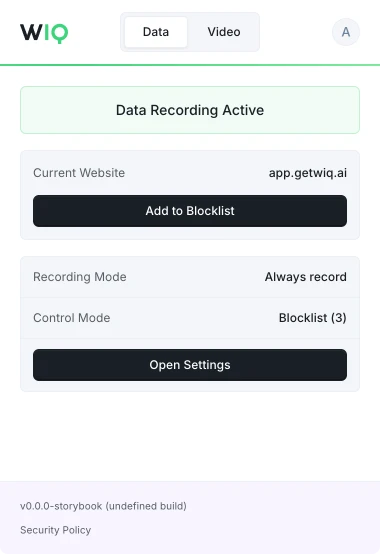
Decide what WIQ can see, what each agent is allowed to do, and where it runs. Every run is checked against the approved blueprint and logged.
Allowlist and blocklist by app, domain, and time window. Nothing outside the policy is ever recorded.
Scope the tools each Agent can reach and the actions it can take. Set the approval gates and escalation paths before it runs.
Every run is checked against the approved blueprint. Deviations are flagged and exceptions route to the right person.
Run locally where the work happens or inside your own cloud. The work never has to leave your environment.
WIQ combines observed work, existing documentation, and input from your team to build process blueprints.
A blueprint describes the process steps, required tools, and approval points. Your team reviews it before deployment.
Agents run in your existing AI platform using WIQ blueprints. Deployment depends on the tools and access each workflow needs.
Admins and users can define which apps and sites WIQ records using allowlists and blocklists.
WIQ surfaces process changes and helps your team review and approve blueprint updates before deployment.
Bring your messiest process. We'll show you the blueprint it becomes.
Book a demo