Spend less time reconciling payments.

WIQ learns how your payment operations team matches settlements, investigates differences, and prepares adjustments, then builds agents that can do that work across Stripe, NetSuite, and your reconciliation files.

An analyst reviewing a finance operations dashboard of spend, invoice status and recent transactions
Potential Impact
−1,200 hr/mo Reconciliation hours
−65% Payment errors

Reconcile Stripe payout po_demo_0914

Reconcile the USD automatic payout po_demo_0914. The workbook is $280 off the bank receipt.

What would you like to do?

The Problem

Reconciling a deposit means accounting for everything that went into it.

Book a demo

A bank deposit may combine hundreds of charges, refunds, fees, and adjustments. Stripe holds the settlement detail, NetSuite holds the accounting records, and an analyst often uses a workbook to explain the difference between them.

When an item is missing, the analyst has to trace it back to the source and check whether finance has already posted it. WIQ captures those checks so an agent can prepare a complete reconciliation and leave the controller with a clear explanation of anything that needs review.

How WIQ builds this agent.

WIQ learns the process from the way your team already runs it, then turns it into an agent you can deploy.
Book a demo

WIQ learns how your team handles the process.

WIQ follows an analyst from Stripe’s payout report to the bank receipt in NetSuite and the reconciliation workbook. It learns how the team accounts for fees and refunds, checks prior postings, and prepares unexplained differences for controller review.

Activity Feed Live
  • Open automatic payout po_demo_0914 and itemized balance transactionsPriya · Stripe1m 21s
  • Find imported USD bank deposit with the same payout referencePriya · NetSuite5s
  • Compare gross charges, refunds, processing fees, and net settlementPriya · Microsoft Excel57s
  • Identify a $280 fee adjustment missing from the workbookPriya · Stripe1m 13s
  • Search prior journals and reconciliation references for the adjustmentPriya · NetSuite50s
  • Attach source transaction IDs and prepare balanced reconciliationPriya · Microsoft Excel1m 17s
  • Review adjustment evidence before postingAlex · NetSuite1m 56s
  • Recheck posted journal and matched deposit; close the breakPriya · NetSuite55s

WIQ builds a Blueprint from the way your team works.

The Blueprint captures the matching rules, account mappings, and source references needed to explain each settlement. It also specifies how to check for previous adjustments and when a difference needs to stay open for further investigation.

Settlement reconciliation

Potential Savings per Case3 min
Est. Cases per Week6,000

Steps

6
Unverified0
Manual1
Ready5
1

Select the settlement scope

ReadyStripeMicrosoft Excel

Read Stripe payout ID, legal entity, currency, and settled status. Use itemized batch matching only for automatic payouts.

  1. 1.1Open the next payout in the team’s Automatic payout reconciliation worklist (ex: po_demo_0914). Capture its Stripe account, currency, destination bank, arrival date, and status; continue only when it is paid and belongs to the entity being reconciled.
  2. 1.2Confirm that the payout is automatic, then retrieve its itemized balance transactions using the payout ID. A manual or instant payout goes to the separate balance-reconciliation queue.
  3. 1.3Create a working schedule in Microsoft Excel using the team’s REC-{batch_reference} naming convention. Retain automatic_payout_id and balance_transaction_id on every source row, with the report timestamp and Stripe account in the workbook header.
  4. 1.4Check that all report pages were retrieved and deduplicate by balance_transaction_id. Use the payout membership rather than the charge date to decide which rows belong in the batch.
2

Match the bank receipt

ReadyStripeNetSuite

Find the NetSuite imported deposit by reference, amount, currency, and bank account; flag duplicates or missing receipts.

  1. 2.1Open Match Bank Data in NetSuite for the bank account mapped to the Stripe entity. Locate the imported credit using payout reference, currency, amount, and expected arrival date; verify the bank reference and value date.
  2. 2.2Check both unmatched bank lines and existing matches before selecting the receipt. Two deposits with the same amount need their source references resolved before either is used.
  3. 2.3Record the bank line reference, account, currency, and import batch in the working schedule. Keep Expected net and Bank received separate and calculate the break (ex: $120,476 expected less $120,196 received leaves $280).
  4. 2.4Link the receipt to the schedule without forcing a match to an unrelated ledger entry. A timing difference stays open if the payout has not actually reached this bank account.
3

Explain gross to net

ReadyStripeMicrosoft Excel

Sum Stripe charges, refunds, fees, and other balance adjustments. Tie each item in Microsoft Excel to its source ID.

  1. 3.1Load the Stripe itemized rows into the workbook’s SettlementLines table with Source ID, Category, Gross, Fee, Net, and Currency columns. Preserve signs and use the currency’s minor-unit scale for API amounts; leave report amounts already in major units unchanged.
  2. 3.2Sum gross charges, refunds, and processing fees by payout and currency. Reproduce the workbook’s expected settlement before adding adjustments so the source of a difference remains visible.
  3. 3.3Inspect balance adjustments for items missing from the workbook (ex: fee adjustment ba_demo_280). Check each item’s description, batch membership, and existing inclusion in the Fee total before adding a separate row.
  4. 3.4Recalculate Net settlement and Difference after adding supported adjustments. Keep each source ID beside its formula, and leave any unexplained remainder open rather than forcing Difference to $0.
4

Check for previous entries

ReadyNetSuite

Search NetSuite for the source adjustment ID before preparing anything that could duplicate a posting.

  1. 4.1Run the team’s NetSuite saved search Processor adjustments by source using the adjustment’s source ID. Include posted journals and journals awaiting approval so a pending entry cannot be posted twice.
  2. 4.2Search the schedule reference and payout ID in the source-reference field and memo as a second check. Compare subsidiary, currency, amount, and account when a result uses a different reference format.
  3. 4.3If an existing entry covers the adjustment, link it to the schedule and prepare only the remaining break. Otherwise record the search time and supported amount eligible for controller review.
  4. 4.4Repeat the source-reference search before the controller posts. If another analyst has created an entry since preparation, hold the proposed adjustment and refresh the reconciliation.
5

Prepare controller review

ManualStripeNetSuite

Assemble the balanced schedule, proposed account mapping, and unresolved items. The controller approves and posts any ledger adjustment.

  1. 5.1Use the workbook’s approved Account mapping tab to select accounts for the entity and adjustment category. For an unposted processing fee, prepare the supported debit to fee expense and credit to Stripe clearing for controller review.
  2. 5.2Attach the working schedule, Stripe adjustment, bank line reference, and duplicate-search result. Include the proposed posting period and flag a closed period for the controller.
  3. 5.3Route the package to the entity’s assigned controller for account review and posting in NetSuite. Record the resulting journal reference (ex: J-771) without initiating a payout or bank transfer.
  4. 5.4Leave the schedule in the team’s Awaiting posting status until the journal is persisted. A chat approval alone does not turn the proposal into a posted entry.
Human input required

A person signs off before this step completes.

6

Verify final reconciliation

ReadyNetSuite

After the controller posts, re-read NetSuite and the bank match. Close only the supported break; retain all unresolved differences.

  1. 6.1Read the posted NetSuite journal and confirm its subsidiary, period, currency, accounts, and amount against the approved schedule. Match its source reference to the adjustment being reconciled.
  2. 6.2Reopen Match Bank Data and verify the recorded match for the selected receipt against the supported settlement entries. A posted fee journal by itself does not prove that the bank line is reconciled.
  3. 6.3Update the working schedule with the journal, bank-match reference, verification time, and remaining difference. Retain any unrelated open items on their own schedule rows.
  4. 6.4Close the payout break only after the report, workbook, and NetSuite agree. Preserve the original exception amount and its resolution for later error-rate reporting.

Tools

3

Required tools and integrations.

Stripe

Automatic payout reports and itemized balance transactions

Ready

NetSuite

Imported bank lines, prior postings, and reconciliation evidence

Ready

Microsoft Excel

Controlled reconciliation workbook and adjustment schedule

Ready

Escalation Paths

3

What happens when automation can't or shouldn't proceed on its own.

Unsupported payout type

Route manual or instant payouts to balance-level reconciliation instead of inventing a transaction-to-payout allocation.

Unexplained or cross-currency difference

Leave the item open with source evidence for the controller; do not add a balancing plug.

Missing or duplicated bank reference

Pause matching and ask treasury to verify the actual receipt.

Guardrails

3

Hard limits the automation must not cross.

No payout creation, beneficiary edits, or transfers.

Never force a zero balance with an unsupported fee or write-off.

Controller authority is required for posting; re-read source IDs before retrying any adjustment.

Deploy the agent to the platform your team uses.

The agent runs in Claude with access to Stripe reports, NetSuite reconciliation records, and the approved workbook. It prepares the reconciliation for the controller, who retains responsibility for posting ledger adjustments.

Deployment
1. Blueprint ApprovalWithdraw
2. Select PlatformWIQ AgentClaudeMicrosoft CopilotOpenAIWorkaton8nCustom APIWIQ Agent
3. DeploymentDeployRelease v1 · DeployedWithdrawLaunch
4. Deploy to Test
5. Deploy to Prod

Settlement reconciliation

Potential Savings per Case3 min
Est. Cases per Week6,000

Steps

6
Unverified0
Manual1
Ready5
1

Select the settlement scope

ReadyStripeMicrosoft Excel

Read Stripe payout ID, legal entity, currency, and settled status. Use itemized batch matching only for automatic payouts.

  1. 1.1Open the next payout in the team’s Automatic payout reconciliation worklist (ex: po_demo_0914). Capture its Stripe account, currency, destination bank, arrival date, and status; continue only when it is paid and belongs to the entity being reconciled.
  2. 1.2Confirm that the payout is automatic, then retrieve its itemized balance transactions using the payout ID. A manual or instant payout goes to the separate balance-reconciliation queue.
  3. 1.3Create a working schedule in Microsoft Excel using the team’s REC-{batch_reference} naming convention. Retain automatic_payout_id and balance_transaction_id on every source row, with the report timestamp and Stripe account in the workbook header.
  4. 1.4Check that all report pages were retrieved and deduplicate by balance_transaction_id. Use the payout membership rather than the charge date to decide which rows belong in the batch.
2

Match the bank receipt

ReadyStripeNetSuite

Find the NetSuite imported deposit by reference, amount, currency, and bank account; flag duplicates or missing receipts.

  1. 2.1Open Match Bank Data in NetSuite for the bank account mapped to the Stripe entity. Locate the imported credit using payout reference, currency, amount, and expected arrival date; verify the bank reference and value date.
  2. 2.2Check both unmatched bank lines and existing matches before selecting the receipt. Two deposits with the same amount need their source references resolved before either is used.
  3. 2.3Record the bank line reference, account, currency, and import batch in the working schedule. Keep Expected net and Bank received separate and calculate the break (ex: $120,476 expected less $120,196 received leaves $280).
  4. 2.4Link the receipt to the schedule without forcing a match to an unrelated ledger entry. A timing difference stays open if the payout has not actually reached this bank account.
3

Explain gross to net

ReadyStripeMicrosoft Excel

Sum Stripe charges, refunds, fees, and other balance adjustments. Tie each item in Microsoft Excel to its source ID.

  1. 3.1Load the Stripe itemized rows into the workbook’s SettlementLines table with Source ID, Category, Gross, Fee, Net, and Currency columns. Preserve signs and use the currency’s minor-unit scale for API amounts; leave report amounts already in major units unchanged.
  2. 3.2Sum gross charges, refunds, and processing fees by payout and currency. Reproduce the workbook’s expected settlement before adding adjustments so the source of a difference remains visible.
  3. 3.3Inspect balance adjustments for items missing from the workbook (ex: fee adjustment ba_demo_280). Check each item’s description, batch membership, and existing inclusion in the Fee total before adding a separate row.
  4. 3.4Recalculate Net settlement and Difference after adding supported adjustments. Keep each source ID beside its formula, and leave any unexplained remainder open rather than forcing Difference to $0.
4

Check for previous entries

ReadyNetSuite

Search NetSuite for the source adjustment ID before preparing anything that could duplicate a posting.

  1. 4.1Run the team’s NetSuite saved search Processor adjustments by source using the adjustment’s source ID. Include posted journals and journals awaiting approval so a pending entry cannot be posted twice.
  2. 4.2Search the schedule reference and payout ID in the source-reference field and memo as a second check. Compare subsidiary, currency, amount, and account when a result uses a different reference format.
  3. 4.3If an existing entry covers the adjustment, link it to the schedule and prepare only the remaining break. Otherwise record the search time and supported amount eligible for controller review.
  4. 4.4Repeat the source-reference search before the controller posts. If another analyst has created an entry since preparation, hold the proposed adjustment and refresh the reconciliation.
5

Prepare controller review

ManualStripeNetSuite

Assemble the balanced schedule, proposed account mapping, and unresolved items. The controller approves and posts any ledger adjustment.

  1. 5.1Use the workbook’s approved Account mapping tab to select accounts for the entity and adjustment category. For an unposted processing fee, prepare the supported debit to fee expense and credit to Stripe clearing for controller review.
  2. 5.2Attach the working schedule, Stripe adjustment, bank line reference, and duplicate-search result. Include the proposed posting period and flag a closed period for the controller.
  3. 5.3Route the package to the entity’s assigned controller for account review and posting in NetSuite. Record the resulting journal reference (ex: J-771) without initiating a payout or bank transfer.
  4. 5.4Leave the schedule in the team’s Awaiting posting status until the journal is persisted. A chat approval alone does not turn the proposal into a posted entry.
Human input required

A person signs off before this step completes.

6

Verify final reconciliation

ReadyNetSuite

After the controller posts, re-read NetSuite and the bank match. Close only the supported break; retain all unresolved differences.

  1. 6.1Read the posted NetSuite journal and confirm its subsidiary, period, currency, accounts, and amount against the approved schedule. Match its source reference to the adjustment being reconciled.
  2. 6.2Reopen Match Bank Data and verify the recorded match for the selected receipt against the supported settlement entries. A posted fee journal by itself does not prove that the bank line is reconciled.
  3. 6.3Update the working schedule with the journal, bank-match reference, verification time, and remaining difference. Retain any unrelated open items on their own schedule rows.
  4. 6.4Close the payout break only after the report, workbook, and NetSuite agree. Preserve the original exception amount and its resolution for later error-rate reporting.

Tools

3

Required tools and integrations.

Stripe

Automatic payout reports and itemized balance transactions

Ready

NetSuite

Imported bank lines, prior postings, and reconciliation evidence

Ready

Microsoft Excel

Controlled reconciliation workbook and adjustment schedule

Ready

Escalation Paths

3

What happens when automation can't or shouldn't proceed on its own.

Unsupported payout type

Route manual or instant payouts to balance-level reconciliation instead of inventing a transaction-to-payout allocation.

Unexplained or cross-currency difference

Leave the item open with source evidence for the controller; do not add a balancing plug.

Missing or duplicated bank reference

Pause matching and ask treasury to verify the actual receipt.

Guardrails

3

Hard limits the automation must not cross.

No payout creation, beneficiary edits, or transfers.

Never force a zero balance with an unsupported fee or write-off.

Controller authority is required for posting; re-read source IDs before retrying any adjustment.

WIQ
Claude
Microsoft Copilot
OpenAI
Workato
n8n
Custom API

The Impact

Track how the agent changes the outcome.

See it on your processes

Reconciliation hours: ↓ 1,200 hr/mo

Saving three minutes of preparation across 24,000 monthly work items releases 1,200 hours. The agent’s source lookup and duplicate check are the repeatable work behind that saving.

Payment errors: ↓ 65%

Matching source IDs, currency, entity, and prior adjustments reduces duplicate postings and incorrect allocations. The $280 fee remains traceable from Stripe to the ledger.

An operations lead at a desk, the WIQ app's privacy and blocklist settings open on the laptop beside her
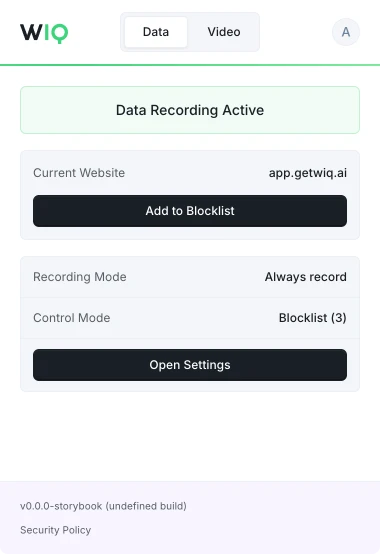
The WIQ browser extension, showing recording active on app.getwiq.ai with its blocklist and control mode

Your data. Your rules.

WIQ is built for enterprises that take data privacy seriously. Everything runs within a security framework designed for regulated industries.

Book a demo

Capture controls

Allowlist and blocklist by app, domain, and time window. Nothing outside the policy is ever recorded.

Permissions and approvals

Scope the tools each Agent can reach and the actions it can take. Set the approval gates and escalation paths before it runs.

Conformance monitoring

Every run is checked against the approved blueprint. Deviations are flagged and exceptions route to the right person.

Deployment isolation

Run locally where the work happens or inside your own cloud. The work never has to leave your environment.

SOC 2 Type II
GDPR
CCPA

Schedule a discovery session with an AI architect.

Book a demo