Help your support team resolve the whole issue.

WIQ learns how your team handles issues across Zendesk, Shopify, and carrier systems, then builds agents that can investigate the problem, arrange a remedy, and keep the customer informed.

A row of support agents in headsets working at screens in a bright open-plan office
Potential Impact
−62% Resolution time
+10 points CSAT

Resolve delivery ticket #8421

Can you take ticket #8421? The customer says their order was due yesterday and still hasn't arrived.

What would you like to do?

The Problem

Resolving a delivery issue takes more than answering the ticket.

Book a demo

A customer asking about a missing order may need someone to check Shopify, review carrier scans, and contact the warehouse before they can get a useful answer. When the ticket changes hands, the next person often has to repeat those checks.

WIQ captures how your team works through these cases, including the policies they consult and the approvals they need. An agent can then gather the facts and carry out the agreed remedy while keeping the order history and customer conversation together.

How WIQ builds this agent.

WIQ learns the process from the way your team already runs it, then turns it into an agent you can deploy.
Book a demo

WIQ learns how your team handles the process.

WIQ follows the work as a support specialist checks an order in Shopify, compares it with FedEx tracking, and asks the warehouse what happened. It captures the steps and waiting time across those tools, along with the policy checks needed to arrange a replacement.

Activity Feed Live
  • Open ticket #8421: order still missing after promised deliveryMaya · Zendesk38s
  • Match verified customer to order 10482; read delivery promiseMaya · Shopify11s
  • Check tracking history: label created, no carrier acceptance scanMaya · FedEx1m 27s
  • Read delayed-delivery playbook and replacement approval limitMaya · Microsoft SharePoint11s
  • Find warehouse note: parcel could not be located at dispatchMaya · Zendesk32s
  • Check replacement inventory and existing replacement recordsMaya · Shopify1m 22s
  • Approve one expedited replacement; record reason and cost capLeon · Zendesk22s
  • Create approved replacement and attach original order referenceMaya · Shopify1m 27s
  • Send remedy and next-update time; keep ticket open until fulfillmentMaya · Zendesk48s

WIQ builds a Blueprint from the way your team works.

WIQ uses those runs to create a delivery-resolution Blueprint covering order matching, tracking checks, replacement eligibility, and follow-up. The support lead reviews the approval limits so the agent can handle routine work and bring exceptions back with the relevant evidence.

Delivery exception resolution

Potential Savings per Case12 min
Est. Cases per Week900

Steps

6
Unverified0
Manual1
Ready5
1

Match the customer and order

ReadyZendeskShopify

Read Zendesk ticket context and match the verified requester to the Shopify order. Stop if identity or store does not match.

  1. 1.1Open the next Zendesk ticket in the team’s Delivery exceptions view (ex: #8421) and read the requester ID, brand, and ticket history. Use the Store code field to select the Shopify store before looking up the linked order.
  2. 1.2Compare the verified requester with the order’s customer ID and email. Record the Shopify order ID as well as its display number so an order with the same number in another brand’s store cannot be selected later.
  3. 1.3Copy the purchased variant, quantity, order value, and original shipping address into the working record. Check internal notes for an earlier address change or identity-review hold.
  4. 1.4Set the team’s Issue type dropdown to Delivery exception and link the order in an internal note. If the customer or store differs, return the case to its assigned specialist for identity review.
2

Reconstruct the delivery timeline

ReadyZendeskShopifyFedEx

Compare Shopify fulfillment, FedEx scans, and the promised date. Label creation alone does not establish that the carrier has the parcel.

  1. 2.1Read the Shopify fulfillment’s tracking number and carrier, then retrieve the corresponding FedEx scan history. Check every fulfillment if the order has been split into separate parcels.
  2. 2.2Compare the promised delivery date with the latest physical scan and its local timestamp. Keep Shopify’s fulfilled status separate from a FedEx label-created event; neither proves carrier acceptance.
  3. 2.3Open the latest warehouse note in Zendesk (ex: W-218) and retain its author and timestamp. Check whether it confirms handover, reports a missing parcel, or leaves the parcel’s location unresolved.
  4. 2.4Add a dated timeline to the ticket with order fulfillment, delivery promise, carrier evidence, and warehouse confirmation. Leave the new delivery estimate blank until there is a supported commitment.
3

Find the permitted remedy

ReadyZendeskShopifyMicrosoft SharePoint

Read the Microsoft SharePoint playbook; check prior remedies, available inventory, and any warehouse evidence in Zendesk.

  1. 3.1Open the effective delivery playbook in Microsoft SharePoint and select the branch supported by the evidence, such as lost before handover. Save the document link and version with the case so the approval uses the same policy.
  2. 3.2Search Shopify order history and Zendesk notes for refunds and linked replacements. Build the team’s lookup tag as replacement_for_{order_id} using the current order’s ID before preparing another remedy.
  3. 3.3Check available inventory for the original variant at the dispatch location. Exclude committed stock and confirm whether the warehouse can use the requested shipping service.
  4. 3.4For a policy-eligible replacement, use the original verified address and record the carrier premium as a merchant expense (ex: $12 for expedited shipping). Keep $0 due from the customer and route any required exception for approval.
4

Approve the exception

ManualZendesk

Present the evidence, proposed replacement, and incremental shipping cost to the authorized support lead.

  1. 4.1Add an internal Zendesk note containing the warehouse evidence, playbook version, stock availability, and proposed shipping premium. Keep warehouse findings out of the public reply until the wording is approved.
  2. 4.2Check that the approving user is authorized for the ticket’s brand and shipping exception. Ask for approval of this order, original address, and cost cap together.
  3. 4.3Record the approver, timestamp, and exact remedy on the current ticket. If inventory, address, or shipping cost changes before creation, return the revised proposal for approval.
Human input required

A person signs off before this step completes.

5

Create once and verify

ReadyZendeskShopify

Re-read Shopify for a prior replacement, create the authorized replacement, and verify its persisted reference before telling the customer.

  1. 5.1Re-read the original order, its refunds, and its replacement_for_{order_id} tag immediately before writing. If a linked order already exists, resume verification of that order.
  2. 5.2Use Duplicate on the Shopify order to prepare a draft, then verify the original variant and quantity. Reapply the approved discount and shipping settings because Shopify does not copy discounts or shipping rates into the duplicate.
  3. 5.3Apply the approved 100% replacement discount and waive customer-facing shipping, leaving $0 due. Record the merchant-paid premium in the note and add the source-order tag and replacement reference before completing the order.
  4. 5.4Read back the resulting Shopify order ID, original address, amount due, and unfulfilled status. Link that ID to the replacement reference in Zendesk (ex: R-10482); a timeout triggers a reference lookup before any retry.
6

Update and follow through

ReadyZendeskShopify

Send the approved Zendesk reply, set a next-update deadline, and await warehouse fulfillment. Do not call a replacement delivered merely because it was created.

  1. 6.1Prepare the public Zendesk reply with the replacement reference, no-cost remedy, and a specific next-update commitment (ex: 15:00 today). Send it after the assigned specialist approves the wording.
  2. 6.2Set the team’s Next dispatch check field to the promised time in the support team’s timezone, retain the ticket owner, and submit as Open. Save the approval and Shopify link as an internal note.
  3. 6.3At the deadline, re-read the replacement fulfillment and carrier tracking. Send the tracking link if dispatch is confirmed; otherwise contact the warehouse and give the customer the promised update.
  4. 6.4Record the actual resolution event before solving the ticket. Preserve any later reopening so resolution time includes customers who had to come back.

Tools

4

Required tools and integrations.

Zendesk

Ticket history, internal notes, replies, and resolution status

Ready

Shopify

Order identity, fulfillment, inventory, and approved replacements

Ready

FedEx

Carrier tracking events and available delivery estimates

Ready

Microsoft SharePoint

Versioned delivery and remedy playbook

Ready

Escalation Paths

3

What happens when automation can't or shouldn't proceed on its own.

Customer or order mismatch

Send to identity review without revealing another customer's order details.

Conflicting tracking evidence

Ask the warehouse or carrier for evidence; do not manufacture an ETA or declare a parcel lost.

Remedy outside policy

Present cost and options to the support lead before any refund or replacement.

Guardrails

3

Hard limits the automation must not cross.

Use the original verified delivery address unless the address-change procedure is completed.

Never issue both a replacement and a refund for the same remedy without explicit approval.

Keep the ticket open through the promised fulfillment check; measure resolution after the case is actually resolved.

Deploy the agent to the platform your team uses.

The reviewed Blueprint runs in the selected agent platform with the Zendesk, Shopify, FedEx, and SharePoint access needed for this process. It follows the team’s existing rules for customer replies, refunds, and replacements.

Deployment
1. Blueprint ApprovalWithdraw
2. Select PlatformWIQ AgentClaudeMicrosoft CopilotOpenAIWorkaton8nCustom APIWIQ Agent
3. DeploymentDeployRelease v1 · DeployedWithdrawLaunch
4. Deploy to Test
5. Deploy to Prod

Delivery exception resolution

Potential Savings per Case12 min
Est. Cases per Week900

Steps

6
Unverified0
Manual1
Ready5
1

Match the customer and order

ReadyZendeskShopify

Read Zendesk ticket context and match the verified requester to the Shopify order. Stop if identity or store does not match.

  1. 1.1Open the next Zendesk ticket in the team’s Delivery exceptions view (ex: #8421) and read the requester ID, brand, and ticket history. Use the Store code field to select the Shopify store before looking up the linked order.
  2. 1.2Compare the verified requester with the order’s customer ID and email. Record the Shopify order ID as well as its display number so an order with the same number in another brand’s store cannot be selected later.
  3. 1.3Copy the purchased variant, quantity, order value, and original shipping address into the working record. Check internal notes for an earlier address change or identity-review hold.
  4. 1.4Set the team’s Issue type dropdown to Delivery exception and link the order in an internal note. If the customer or store differs, return the case to its assigned specialist for identity review.
2

Reconstruct the delivery timeline

ReadyZendeskShopifyFedEx

Compare Shopify fulfillment, FedEx scans, and the promised date. Label creation alone does not establish that the carrier has the parcel.

  1. 2.1Read the Shopify fulfillment’s tracking number and carrier, then retrieve the corresponding FedEx scan history. Check every fulfillment if the order has been split into separate parcels.
  2. 2.2Compare the promised delivery date with the latest physical scan and its local timestamp. Keep Shopify’s fulfilled status separate from a FedEx label-created event; neither proves carrier acceptance.
  3. 2.3Open the latest warehouse note in Zendesk (ex: W-218) and retain its author and timestamp. Check whether it confirms handover, reports a missing parcel, or leaves the parcel’s location unresolved.
  4. 2.4Add a dated timeline to the ticket with order fulfillment, delivery promise, carrier evidence, and warehouse confirmation. Leave the new delivery estimate blank until there is a supported commitment.
3

Find the permitted remedy

ReadyZendeskShopifyMicrosoft SharePoint

Read the Microsoft SharePoint playbook; check prior remedies, available inventory, and any warehouse evidence in Zendesk.

  1. 3.1Open the effective delivery playbook in Microsoft SharePoint and select the branch supported by the evidence, such as lost before handover. Save the document link and version with the case so the approval uses the same policy.
  2. 3.2Search Shopify order history and Zendesk notes for refunds and linked replacements. Build the team’s lookup tag as replacement_for_{order_id} using the current order’s ID before preparing another remedy.
  3. 3.3Check available inventory for the original variant at the dispatch location. Exclude committed stock and confirm whether the warehouse can use the requested shipping service.
  4. 3.4For a policy-eligible replacement, use the original verified address and record the carrier premium as a merchant expense (ex: $12 for expedited shipping). Keep $0 due from the customer and route any required exception for approval.
4

Approve the exception

ManualZendesk

Present the evidence, proposed replacement, and incremental shipping cost to the authorized support lead.

  1. 4.1Add an internal Zendesk note containing the warehouse evidence, playbook version, stock availability, and proposed shipping premium. Keep warehouse findings out of the public reply until the wording is approved.
  2. 4.2Check that the approving user is authorized for the ticket’s brand and shipping exception. Ask for approval of this order, original address, and cost cap together.
  3. 4.3Record the approver, timestamp, and exact remedy on the current ticket. If inventory, address, or shipping cost changes before creation, return the revised proposal for approval.
Human input required

A person signs off before this step completes.

5

Create once and verify

ReadyZendeskShopify

Re-read Shopify for a prior replacement, create the authorized replacement, and verify its persisted reference before telling the customer.

  1. 5.1Re-read the original order, its refunds, and its replacement_for_{order_id} tag immediately before writing. If a linked order already exists, resume verification of that order.
  2. 5.2Use Duplicate on the Shopify order to prepare a draft, then verify the original variant and quantity. Reapply the approved discount and shipping settings because Shopify does not copy discounts or shipping rates into the duplicate.
  3. 5.3Apply the approved 100% replacement discount and waive customer-facing shipping, leaving $0 due. Record the merchant-paid premium in the note and add the source-order tag and replacement reference before completing the order.
  4. 5.4Read back the resulting Shopify order ID, original address, amount due, and unfulfilled status. Link that ID to the replacement reference in Zendesk (ex: R-10482); a timeout triggers a reference lookup before any retry.
6

Update and follow through

ReadyZendeskShopify

Send the approved Zendesk reply, set a next-update deadline, and await warehouse fulfillment. Do not call a replacement delivered merely because it was created.

  1. 6.1Prepare the public Zendesk reply with the replacement reference, no-cost remedy, and a specific next-update commitment (ex: 15:00 today). Send it after the assigned specialist approves the wording.
  2. 6.2Set the team’s Next dispatch check field to the promised time in the support team’s timezone, retain the ticket owner, and submit as Open. Save the approval and Shopify link as an internal note.
  3. 6.3At the deadline, re-read the replacement fulfillment and carrier tracking. Send the tracking link if dispatch is confirmed; otherwise contact the warehouse and give the customer the promised update.
  4. 6.4Record the actual resolution event before solving the ticket. Preserve any later reopening so resolution time includes customers who had to come back.

Tools

4

Required tools and integrations.

Zendesk

Ticket history, internal notes, replies, and resolution status

Ready

Shopify

Order identity, fulfillment, inventory, and approved replacements

Ready

FedEx

Carrier tracking events and available delivery estimates

Ready

Microsoft SharePoint

Versioned delivery and remedy playbook

Ready

Escalation Paths

3

What happens when automation can't or shouldn't proceed on its own.

Customer or order mismatch

Send to identity review without revealing another customer's order details.

Conflicting tracking evidence

Ask the warehouse or carrier for evidence; do not manufacture an ETA or declare a parcel lost.

Remedy outside policy

Present cost and options to the support lead before any refund or replacement.

Guardrails

3

Hard limits the automation must not cross.

Use the original verified delivery address unless the address-change procedure is completed.

Never issue both a replacement and a refund for the same remedy without explicit approval.

Keep the ticket open through the promised fulfillment check; measure resolution after the case is actually resolved.

WIQ
Claude
Microsoft Copilot
OpenAI
Workato
n8n
Custom API

The Impact

Track how the agent changes the outcome.

See it on your processes

Resolution time: ↓ 62%

Checking the order, carrier, and warehouse together avoids another queue transfer. An approved replacement can be arranged while the original conversation is still open.

CSAT: ↑ 10 points

The customer gets a remedy and a specific next update without repeating the problem to another person. Dispatch follow-up helps the team keep that promise.

An operations lead at a desk, the WIQ app's privacy and blocklist settings open on the laptop beside her
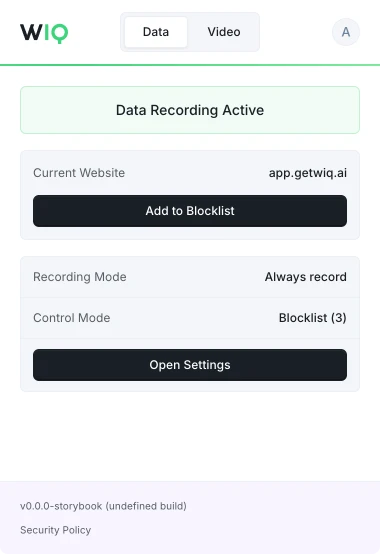
The WIQ browser extension, showing recording active on app.getwiq.ai with its blocklist and control mode

Your data. Your rules.

WIQ is built for enterprises that take data privacy seriously. Everything runs within a security framework designed for regulated industries.

Book a demo

Capture controls

Allowlist and blocklist by app, domain, and time window. Nothing outside the policy is ever recorded.

Permissions and approvals

Scope the tools each Agent can reach and the actions it can take. Set the approval gates and escalation paths before it runs.

Conformance monitoring

Every run is checked against the approved blueprint. Deviations are flagged and exceptions route to the right person.

Deployment isolation

Run locally where the work happens or inside your own cloud. The work never has to leave your environment.

SOC 2 Type II
GDPR
CCPA

Schedule a discovery session with an AI architect.

Book a demo