Help customers pay sooner by resolving invoice problems.

WIQ learns how your team corrects billing issues, gathers delivery evidence, follows up with customers, and applies receipts, then builds agents that carry that work across Salesforce, NetSuite, and email.

A billing specialist at a desk, working through invoice exceptions
Potential Impact
−80% Handoffs
−$5.2M Working capital

Unblock Northstar invoice INV-8041

What's holding up Northstar's $48,000 invoice INV-8041? Get the correction ready.

What would you like to do?

The Problem

Missing billing details can delay an otherwise straightforward payment.

Book a demo

When a customer rejects an invoice for a missing PO reference, finance may need sales to find the order and operations to supply proof of delivery. The collector waits while information moves between teams, even though the customer may already be ready to pay.

WIQ captures how collectors resolve these issues so an agent can gather the documents, prepare the correction, and follow up with the customer. Once payment arrives, it can match the receipt and remittance for finance to review.

How WIQ builds this agent.

WIQ learns the process from the way your team already runs it, then turns it into an agent you can deploy.
Book a demo

WIQ learns how your team handles the process.

WIQ follows a collector from the Salesforce billing case to NetSuite invoices, supporting documents, and the customer’s email. It captures how they identify the reason for rejection, verify the correction, and check the remittance when payment arrives.

Activity Feed Live
  • Open Northstar billing case: invoice rejected for missing PO referenceElena · Salesforce57s
  • Read INV-8041 for $48,000 and related customer recordElena · NetSuite1m 33s
  • Locate signed order NS-220 and delivery evidenceElena · Microsoft SharePoint1m 53s
  • Verify established AP contact and rejection detailsElena · Microsoft Outlook50s
  • Approve correction to customer PO reference; preserve invoice amountMarcus · NetSuite13s
  • Send corrected invoice package to the verified AP contactElena · Microsoft Outlook23s
  • Match later $60,000 bank receipt with customer and currencyElena · NetSuite1m 18s
  • Read remittance allocating $48,000 and $12,000 to two invoicesElena · Microsoft Outlook1m 19s
  • Apply approved receipt allocation and recheck open balancesElena · NetSuite47s

WIQ builds a Blueprint from the way your team works.

The Blueprint connects the invoice correction with the rest of the collection process, including approvals, customer follow-up, and receipt matching. Finance reviews the rules for changes, deductions, and cash application before deployment.

Invoice exception to cash

Potential Savings per Case16 min
Est. Cases per Week500

Steps

6
Unverified0
Manual2
Ready4
1

Identify the payment blocker

ReadySalesforceNetSuite

Read Salesforce case and NetSuite invoice; distinguish a missing reference from a price dispute or credit request.

  1. 1.1Open the next case in the team’s Billing exceptions queue in Salesforce (ex: BC-8041). Follow NetSuite_Invoice_ID__c to the invoice and confirm the customer and open amount.
  2. 1.2Read the latest AP message and compare the invoice’s customer PO reference with the case notes. Classify the blocker as Missing PO reference only when the customer is not disputing price, delivery, or tax.
  3. 1.3Check the invoice’s subsidiary, currency, due date, and open balance in NetSuite. Save those values with the case before preparing any correction.
  4. 1.4Look for an existing correction request or credit memo linked to the invoice. Keep one owner for the billing exception so parallel teams do not send competing versions.
2

Assemble the evidence

ReadyNetSuiteMicrosoft OutlookMicrosoft SharePoint

Find the signed order in Microsoft SharePoint and verify the established AP contact through Microsoft Outlook and the customer record.

  1. 2.1Find the signed order in Microsoft SharePoint using the customer and invoice’s source-order reference (ex: NS-220). Check the signed version and link the relevant delivery evidence.
  2. 2.2Compare the customer’s purchasing reference on the signed order with the NetSuite invoice. Put any missing or incorrect reference and its source page in the finance review note.
  3. 2.3Check the established AP contact against the customer record and prior Microsoft Outlook correspondence. A new sender or changed payment instruction needs separate verification.
  4. 2.4Prepare one invoice package containing the proposed reference correction, signed order, and delivery support. Preserve the original amount, payment terms, and bank instructions.
3

Approve the correction

ManualSalesforceNetSuite

Finance approves the proposed invoice-reference correction and outgoing package. No amount, terms, or bank details change without their separate authorization.

  1. 3.1Present finance with the original and proposed customer PO reference, invoice, and signed order. Specify that the request changes the reference only.
  2. 3.2Capture the reviewer’s approval for the invoice update and outgoing package. If the reviewer requests a credit, price change, or new payment terms, route that as a separate transaction.
  3. 3.3Apply the approved reference through the team’s NetSuite invoice-correction procedure. Re-read the saved invoice and verify that amount, currency, due date, and bank instructions still match the original.
  4. 3.4Attach the approved invoice version and reviewer reference to the source Salesforce case. Use this version for the customer email so an older attachment is not sent accidentally.
Human input required

A person signs off before this step completes.

4

Track the customer's response

ReadySalesforceNetSuiteMicrosoft Outlook

Send the approved invoice package using Microsoft Outlook, record follow-up in Salesforce, and keep the receivable open until funds are actually received.

  1. 4.1Send the approved package through Microsoft Outlook in the established AP conversation. Include the invoice number and corrected PO reference in the subject or message body.
  2. 4.2Save the sent message reference and next follow-up date on the Salesforce case. Record acknowledgment separately from a promised payment date or actual receipt.
  3. 4.3When remittance advice arrives, link it to the same case and inspect every invoice allocation (ex: REM-604 covers two invoices). A remittance advice alone does not close the receivable.
  4. 4.4Check NetSuite for the corresponding bank receipt before advancing. Keep follow-up active if the promised funds have not arrived or the receipt belongs to another entity.
5

Prepare exact cash allocation

ReadyNetSuiteMicrosoft Outlook

Compare the NetSuite bank receipt with Microsoft Outlook remittance by customer, currency, subsidiary, invoice, and amount. Search for a prior application.

  1. 5.1Compare the remittance with the bank receipt by customer, subsidiary, currency, and amount. Check the bank reference and payer before using the receipt (ex: BR-601 for a $60,000 USD payment).
  2. 5.2Read the remaining balance on each remitted invoice and prepare its exact allocation. Check that the allocations total the receipt (ex: $48,000 to INV-8041 plus $12,000 to INV-8042); route shortfalls or excess cash for review.
  3. 5.3Search NetSuite customer payments and bank matches using the receipt and remittance references. If the receipt already has an unapplied customer payment, use that record rather than creating a second receipt.
  4. 5.4Prepare the customer payment’s Apply subtab with Auto Apply cleared. Select only the invoices supported by the remittance and enter their exact amounts; leave unrelated invoices and credits untouched.
6

Approve and verify application

ManualSalesforceNetSuite

Finance approves the supported allocation. Apply it in NetSuite, read back invoice balances, and close the Salesforce case only when the blocker and payment are resolved.

  1. 6.1Present finance with the bank receipt, remittance, and proposed invoice allocations. Require approval of the exact application before saving it in NetSuite.
  2. 6.2Apply the approved amounts to the existing receipt or authorized customer-payment record and retain its reference (ex: CP-601). If saving times out, search by receipt reference and re-read the payment before retrying.
  3. 6.3Read the payment’s applied lines and compare each invoice balance with the expected remainder. Confirm the receipt link and explain any unapplied balance; full payment should leave the covered invoices at $0.
  4. 6.4Close the Salesforce case only when its blocker and payment are resolved, retaining the payment and corrected invoice references. Stop reminders for fully paid invoices while preserving follow-up on remaining balances.
Human input required

A person signs off before this step completes.

Tools

4

Required tools and integrations.

Salesforce

Billing case, customer context, and case ownership

Ready

NetSuite

Invoices, bank-receipt records, customer payments, and open balances

Ready

Microsoft Outlook

Verified AP correspondence and remittance messages

Ready

Microsoft SharePoint

Signed order and delivery-supporting documents

Ready

Escalation Paths

3

What happens when automation can't or shouldn't proceed on its own.

Commercial dispute or deduction

Ask the account owner and finance to decide; do not issue credit or write off a difference.

New bank or contact details

Follow independent verification; never take emailed bank changes as authority.

Ambiguous remittance

Leave the amount unapplied until invoice allocation is evidenced.

Guardrails

3

Hard limits the automation must not cross.

A promise to pay is not a receipt; do not mark invoices paid on an email alone.

Apply cash only to the supported customer, entity, currency, and invoices; prevent duplicate applications.

Do not describe cash application of money already received as newly released working capital.

Deploy the agent to the platform your team uses.

The agent runs in Claude with the Salesforce, NetSuite, Outlook, and SharePoint access needed for the process. Finance retains approval of price changes, credits, write-offs, and bank instructions while the agent prepares the supporting work.

Deployment
1. Blueprint ApprovalWithdraw
2. Select PlatformWIQ AgentClaudeMicrosoft CopilotOpenAIWorkaton8nCustom APIWIQ Agent
3. DeploymentDeployRelease v1 · DeployedWithdrawLaunch
4. Deploy to Test
5. Deploy to Prod

Invoice exception to cash

Potential Savings per Case16 min
Est. Cases per Week500

Steps

6
Unverified0
Manual2
Ready4
1

Identify the payment blocker

ReadySalesforceNetSuite

Read Salesforce case and NetSuite invoice; distinguish a missing reference from a price dispute or credit request.

  1. 1.1Open the next case in the team’s Billing exceptions queue in Salesforce (ex: BC-8041). Follow NetSuite_Invoice_ID__c to the invoice and confirm the customer and open amount.
  2. 1.2Read the latest AP message and compare the invoice’s customer PO reference with the case notes. Classify the blocker as Missing PO reference only when the customer is not disputing price, delivery, or tax.
  3. 1.3Check the invoice’s subsidiary, currency, due date, and open balance in NetSuite. Save those values with the case before preparing any correction.
  4. 1.4Look for an existing correction request or credit memo linked to the invoice. Keep one owner for the billing exception so parallel teams do not send competing versions.
2

Assemble the evidence

ReadyNetSuiteMicrosoft OutlookMicrosoft SharePoint

Find the signed order in Microsoft SharePoint and verify the established AP contact through Microsoft Outlook and the customer record.

  1. 2.1Find the signed order in Microsoft SharePoint using the customer and invoice’s source-order reference (ex: NS-220). Check the signed version and link the relevant delivery evidence.
  2. 2.2Compare the customer’s purchasing reference on the signed order with the NetSuite invoice. Put any missing or incorrect reference and its source page in the finance review note.
  3. 2.3Check the established AP contact against the customer record and prior Microsoft Outlook correspondence. A new sender or changed payment instruction needs separate verification.
  4. 2.4Prepare one invoice package containing the proposed reference correction, signed order, and delivery support. Preserve the original amount, payment terms, and bank instructions.
3

Approve the correction

ManualSalesforceNetSuite

Finance approves the proposed invoice-reference correction and outgoing package. No amount, terms, or bank details change without their separate authorization.

  1. 3.1Present finance with the original and proposed customer PO reference, invoice, and signed order. Specify that the request changes the reference only.
  2. 3.2Capture the reviewer’s approval for the invoice update and outgoing package. If the reviewer requests a credit, price change, or new payment terms, route that as a separate transaction.
  3. 3.3Apply the approved reference through the team’s NetSuite invoice-correction procedure. Re-read the saved invoice and verify that amount, currency, due date, and bank instructions still match the original.
  4. 3.4Attach the approved invoice version and reviewer reference to the source Salesforce case. Use this version for the customer email so an older attachment is not sent accidentally.
Human input required

A person signs off before this step completes.

4

Track the customer's response

ReadySalesforceNetSuiteMicrosoft Outlook

Send the approved invoice package using Microsoft Outlook, record follow-up in Salesforce, and keep the receivable open until funds are actually received.

  1. 4.1Send the approved package through Microsoft Outlook in the established AP conversation. Include the invoice number and corrected PO reference in the subject or message body.
  2. 4.2Save the sent message reference and next follow-up date on the Salesforce case. Record acknowledgment separately from a promised payment date or actual receipt.
  3. 4.3When remittance advice arrives, link it to the same case and inspect every invoice allocation (ex: REM-604 covers two invoices). A remittance advice alone does not close the receivable.
  4. 4.4Check NetSuite for the corresponding bank receipt before advancing. Keep follow-up active if the promised funds have not arrived or the receipt belongs to another entity.
5

Prepare exact cash allocation

ReadyNetSuiteMicrosoft Outlook

Compare the NetSuite bank receipt with Microsoft Outlook remittance by customer, currency, subsidiary, invoice, and amount. Search for a prior application.

  1. 5.1Compare the remittance with the bank receipt by customer, subsidiary, currency, and amount. Check the bank reference and payer before using the receipt (ex: BR-601 for a $60,000 USD payment).
  2. 5.2Read the remaining balance on each remitted invoice and prepare its exact allocation. Check that the allocations total the receipt (ex: $48,000 to INV-8041 plus $12,000 to INV-8042); route shortfalls or excess cash for review.
  3. 5.3Search NetSuite customer payments and bank matches using the receipt and remittance references. If the receipt already has an unapplied customer payment, use that record rather than creating a second receipt.
  4. 5.4Prepare the customer payment’s Apply subtab with Auto Apply cleared. Select only the invoices supported by the remittance and enter their exact amounts; leave unrelated invoices and credits untouched.
6

Approve and verify application

ManualSalesforceNetSuite

Finance approves the supported allocation. Apply it in NetSuite, read back invoice balances, and close the Salesforce case only when the blocker and payment are resolved.

  1. 6.1Present finance with the bank receipt, remittance, and proposed invoice allocations. Require approval of the exact application before saving it in NetSuite.
  2. 6.2Apply the approved amounts to the existing receipt or authorized customer-payment record and retain its reference (ex: CP-601). If saving times out, search by receipt reference and re-read the payment before retrying.
  3. 6.3Read the payment’s applied lines and compare each invoice balance with the expected remainder. Confirm the receipt link and explain any unapplied balance; full payment should leave the covered invoices at $0.
  4. 6.4Close the Salesforce case only when its blocker and payment are resolved, retaining the payment and corrected invoice references. Stop reminders for fully paid invoices while preserving follow-up on remaining balances.
Human input required

A person signs off before this step completes.

Tools

4

Required tools and integrations.

Salesforce

Billing case, customer context, and case ownership

Ready

NetSuite

Invoices, bank-receipt records, customer payments, and open balances

Ready

Microsoft Outlook

Verified AP correspondence and remittance messages

Ready

Microsoft SharePoint

Signed order and delivery-supporting documents

Ready

Escalation Paths

3

What happens when automation can't or shouldn't proceed on its own.

Commercial dispute or deduction

Ask the account owner and finance to decide; do not issue credit or write off a difference.

New bank or contact details

Follow independent verification; never take emailed bank changes as authority.

Ambiguous remittance

Leave the amount unapplied until invoice allocation is evidenced.

Guardrails

3

Hard limits the automation must not cross.

A promise to pay is not a receipt; do not mark invoices paid on an email alone.

Apply cash only to the supported customer, entity, currency, and invoices; prevent duplicate applications.

Do not describe cash application of money already received as newly released working capital.

WIQ
Claude
Microsoft Copilot
OpenAI
Workato
n8n
Custom API

The Impact

Track how the agent changes the outcome.

See it on your processes

Handoffs: ↓ 80%

Gathering the signed order, delivery evidence, and invoice details in one run leaves the finance approval as the main handoff for this type of exception.

Working capital: ↓ $5.2M

Removing billing blockers can bring cash forward. At $1.3M in daily credit sales, four fewer days in receivables releases $5.2M; applying cash that has already arrived does not create that release.

An operations lead at a desk, the WIQ app's privacy and blocklist settings open on the laptop beside her
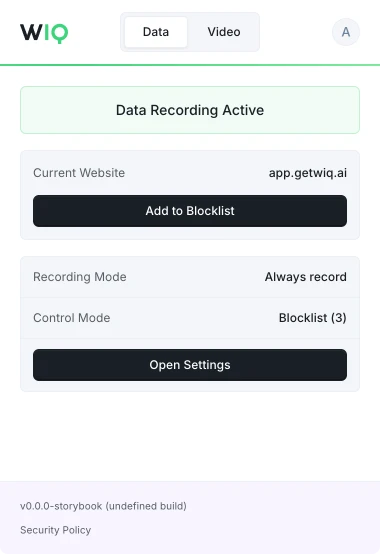
The WIQ browser extension, showing recording active on app.getwiq.ai with its blocklist and control mode

Your data. Your rules.

WIQ is built for enterprises that take data privacy seriously. Everything runs within a security framework designed for regulated industries.

Book a demo

Capture controls

Allowlist and blocklist by app, domain, and time window. Nothing outside the policy is ever recorded.

Permissions and approvals

Scope the tools each Agent can reach and the actions it can take. Set the approval gates and escalation paths before it runs.

Conformance monitoring

Every run is checked against the approved blueprint. Deviations are flagged and exceptions route to the right person.

Deployment isolation

Run locally where the work happens or inside your own cloud. The work never has to leave your environment.

SOC 2 Type II
GDPR
CCPA

Schedule a discovery session with an AI architect.

Book a demo