WIQ agent OS: Enterprise agents for every ops team

One platform, a fleet of agents for every operations team. WIQ watches how each team works, builds the agents, and runs the whole fleet from one view.

  • Data Recording
  • Screen Recording
  • Documents Upload
Activity Feed Live
  • Open PR-48217 with quote Steve · ServiceNow 52s
  • Check supplier and MNT-210 Steve · SAP S/4HANA 1m 46s
  • Read contract C-2201 Steve · SAP Ariba 50s
  • Ask supplier about unit BX Steve · Microsoft Outlook 1m 52s
  • Receive corrected quote Q-771R Steve · Microsoft Outlook 42s
  • Search for duplicate requisitions Steve · SAP Ariba 1m 23s
  • Route $4,800 requisition Steve · SAP Ariba 58s
  • Approve requisition Rosa · SAP Ariba 11s
  • Record PO-91042 Steve · ServiceNow 1m 50s
Discovery

Always-on insight into how work happens.

WIQ watches work across browser and desktop to show how each process runs and what to automate.

Learn more

Purchase request to PO

Potential Savings per Case8 min
Est. Cases per Week1,600

Steps

6
Unverified0
Manual1
Ready5
1

Complete the intake

ReadyServiceNow

Read ServiceNow request, quote, quantity, delivery location, and cost center. Return missing fields to the requester.

  1. 1.1Open the next ServiceNow request in the team’s Maintenance purchasing queue (ex: PR-48217). Read its catalog variables: Requested for, Delivery location, Needed by, Quantity, and Cost center.
  2. 1.2Open the attached supplier quote and compare its item description with the request. Record the supplier reference and quoted unit of measure separately from quantity (ex: BX for boxes versus EA for individual units).
  3. 1.3Check the requester’s delivery site against the selected company and purchasing organization. Ask the requester to complete any missing site or accounting information before preparing an Ariba requisition.
  4. 1.4Save the intake record’s sys_id and request number in the working record. Use the stable source reference when checking for duplicate requisitions later.
2

Validate master data

ReadySAP AribaSAP S/4HANA

Check SAP S/4HANA supplier status and accounting references. Stop if the supplier is blocked or a master-data change is needed.

  1. 2.1Look up the supplier in SAP S/4HANA by its existing business-partner reference. Check purchasing and posting blocks for the company code and purchasing organization on this request.
  2. 2.2Validate the selected cost center against its effective dates and controlling area (ex: MNT-210 for the maintenance team). Resolve the delivery site to the existing plant and ship-to address.
  3. 2.3Find the applicable SAP Ariba contract using supplier, item, purchasing organization, and effective date. Compare its supplier reference with SAP S/4HANA; stop if similar names refer to different records.
  4. 2.4Carry the verified supplier, company code, plant, and cost center into the intake record. Route any master-data correction to its owner instead of editing supplier or banking records.
3

Resolve commercial discrepancies

ReadySAP AribaMicrosoft Outlook

Compare the SAP Ariba contract with quoted price, unit, and quantity; get documented clarification through Microsoft Outlook.

  1. 3.1Open the applicable contract line in SAP Ariba and compare price, currency, unit of measure, and quantity breaks with the quote. Flag mismatches such as a contract price per EA and a supplier quote per BX.
  2. 3.2Use Microsoft Outlook to ask the established supplier contact to clarify the discrepancy. For a BX-versus-EA mismatch, request the pack size and corrected unit; include the request and contract line references.
  3. 3.3Retain the original quote and attach its corrected revision (ex: Q-771R). Confirm quantity, unit price, shipping, and applicable tax from the revised terms before updating the request.
  4. 3.4Recalculate the total using the confirmed units and charges (ex: 12 EA × $400 = $4,800 before any additional charges). Record the correction without assuming a BX-to-EA pack size.
4

Prepare one requisition

ReadyServiceNowSAP Ariba

Search SAP Ariba for the source request and quote before preparing a requisition, attaching evidence and the existing approval route.

  1. 4.1Search SAP Ariba for the request number, ServiceNow sys_id, and accepted quote reference, including requisitions still in approval. Resume an existing request if the source has already been used.
  2. 4.2Prepare the requisition with the confirmed quantity, unit of measure, unit price, contracted supplier, and verified ship-to location. Attach the accepted quote revision and applicable contract reference.
  3. 4.3Apply the validated cost-center assignment to each line and inspect the budget-check result for its accounting split. Keep the configured budget code and approval flow instead of changing cost centers to clear a warning.
  4. 4.4Check the displayed total against the accepted quote and route the requisition through the configured approval flow. Write the generated requisition reference back to ServiceNow before waiting for a decision.
5

Budget owner approval

ManualServiceNowSAP Ariba

The authorized budget owner approves in SAP Ariba. The agent cannot approve its own request or split the purchase to avoid a threshold.

  1. 5.1Open the requisition’s Approval Flow in SAP Ariba and check the budget owner against the cost-center approval mapping. Include any corrected units, the final total, and budget-check results in the review package.
  2. 5.2The mapped budget owner reviews the result and uses Approve in SAP Ariba. A supplier email or a ServiceNow comment does not satisfy the requisition’s approval requirement.
  3. 5.3Read back the approved revision and approval history before continuing. If quantity, price, or accounting changes, follow Ariba’s renewed approval requirements for that revision.
  4. 5.4Keep the requested purchase together on its requisition. If budget is insufficient or the owner rejects it, return the stated reason to the requester without splitting the purchase.
Human input required

A person signs off before this step completes.

6

Verify the generated order

ReadyServiceNowSAP AribaSAP S/4HANA

Read the resulting SAP Ariba PO and transmission status before updating ServiceNow. Track supplier acknowledgment separately.

  1. 6.1Follow the approved requisition to the purchase order generated by SAP Ariba (ex: PO-91042). Verify its supplier, line quantities, units, total, and delivery location against the approved revision.
  2. 6.2Read the outbound order status and transmission timestamp. Track supplier acknowledgment separately; successful transmission alone does not mean the supplier has accepted the order.
  3. 6.3Update the source ServiceNow request with the requisition and PO references. Set the team’s PO transmitted status only after successful transmission, and attach the approval and accepted quote revision.
  4. 6.4Track acknowledgment against the generated PO and follow up with the supplier if it is overdue. A delayed acknowledgment does not justify creating another PO in SAP S/4HANA.

Tools

4

Required tools and integrations.

ServiceNow

Purchase intake, attachments, requester details, and case status

Ready

SAP Ariba

Contract schedule, requisition preparation, approval status, and PO reference

Ready

SAP S/4HANA

Supplier and accounting master-data checks

Ready

Microsoft Outlook

Quote clarifications and supplier correspondence

Ready

Escalation Paths

3

What happens when automation can't or shouldn't proceed on its own.

Price, unit, or quantity mismatch

Hold submission until the requester or supplier supplies written clarification.

Blocked or new supplier

Route to supplier onboarding; do not alter vendor or bank master data.

Duplicate or stale request

Link the existing requisition and ask the buyer whether any change is needed.

Guardrails

3

Hard limits the automation must not cross.

No self-approval and no purchase splitting to evade thresholds.

Use the established Ariba-to-ERP flow; do not create a second PO independently in the ERP.

Do not report supplier acceptance until an acknowledgment is actually received.

Blueprint

Turn real work into working agents.

Each process becomes a blueprint of skills, tools, and guardrails your agents run on.

Learn more
  • WIQ
  • Claude
  • Microsoft Copilot
  • OpenAI
  • Workato
  • n8n
Runtime

Clear the backlog with a fleet of agents.

Launch many agents at once, locally where the work happens or in your cloud, and follow every run.

Learn more
Continuous Context

Agents that keep up as work changes.

Run an agent in the WIQ app and follow every step across your systems, with a person brought in whenever a decision needs one. When a process shifts, WIQ catches it and the blueprint updates itself.

Learn more

Prepare purchase request

Give me a list of ready to purchase POs

What would you like to do?

WIQ
Claude
Microsoft Copilot
OpenAI
Workato
n8n
Custom API
An operations lead at a desk, the WIQ app's privacy and blocklist settings open on the laptop beside her
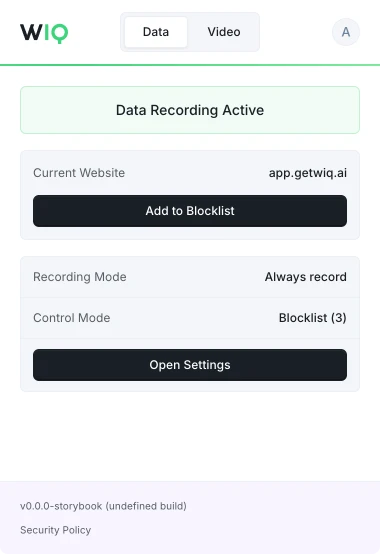
The WIQ browser extension, showing recording active on app.getwiq.ai with its blocklist and control mode

Governance and controls for every agent you deploy

Decide what WIQ can see, what each agent is allowed to do, and where it runs. Every run is checked against the approved blueprint and logged.

Book a demo

Capture controls

Allowlist and blocklist by app, domain, and time window. Nothing outside the policy is ever recorded.

Permissions and approvals

Scope the tools each Agent can reach and the actions it can take. Set the approval gates and escalation paths before it runs.

Conformance monitoring

Every run is checked against the approved blueprint. Deviations are flagged and exceptions route to the right person.

Deployment isolation

Run locally where the work happens or inside your own cloud. The work never has to leave your environment.

SOC 2 Type II
GDPR
CCPA

Frequently asked questions

How does WIQ learn our processes?

WIQ combines observed work, existing documentation, and input from your team to build process blueprints.

What is a blueprint?

A blueprint describes the process steps, required tools, and approval points. Your team reviews it before deployment.

Where do the agents run?

Agents run in your existing AI platform using WIQ blueprints. Deployment depends on the tools and access each workflow needs.

Can we control what WIQ records?

Admins and users can define which apps and sites WIQ records using allowlists and blocklists.

What happens when our process changes?

WIQ surfaces process changes and helps your team review and approve blueprint updates before deployment.

Choose a process that crosses systems, people, and exceptions. WIQ will observe how it runs, build the blueprint, and deploy the agent in your existing stack.

Try it